
Polylang: Import Data in Multiple Languages
Overview
The WP Import Export plugin allows you to import multilingual content for the Polylang plugin quickly and easily in just a few steps.
Step-by-Step Guide: Importing Polylang Content
Step 1: Start the Import Process
- Navigate to:
YOUR_SITE => WP Import Export => New Import => File Setup. Review the setup file, and if everything looks correct then click on top right ‘Next‘ button to next step.
Important Notes :
- If the setup file is exported using the same plugin, content types and all fields will be automatically mapped.
- If you’re using a custom file, the plugin auto-mapp certain fields, while others must be manually mapped.
Step 2: Select What to Import
- Choose the specific content types you want to import.
Step 3: Field Mapping, if you don’t understand, confusion, or unclear in field mapping step then click on Field Mapping learn more.
- Setting up the Polylang section and configuring Polylang languages is easy—all you need are two pieces of information.
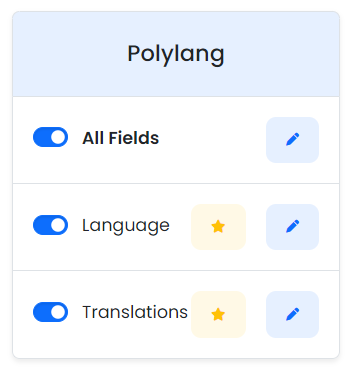
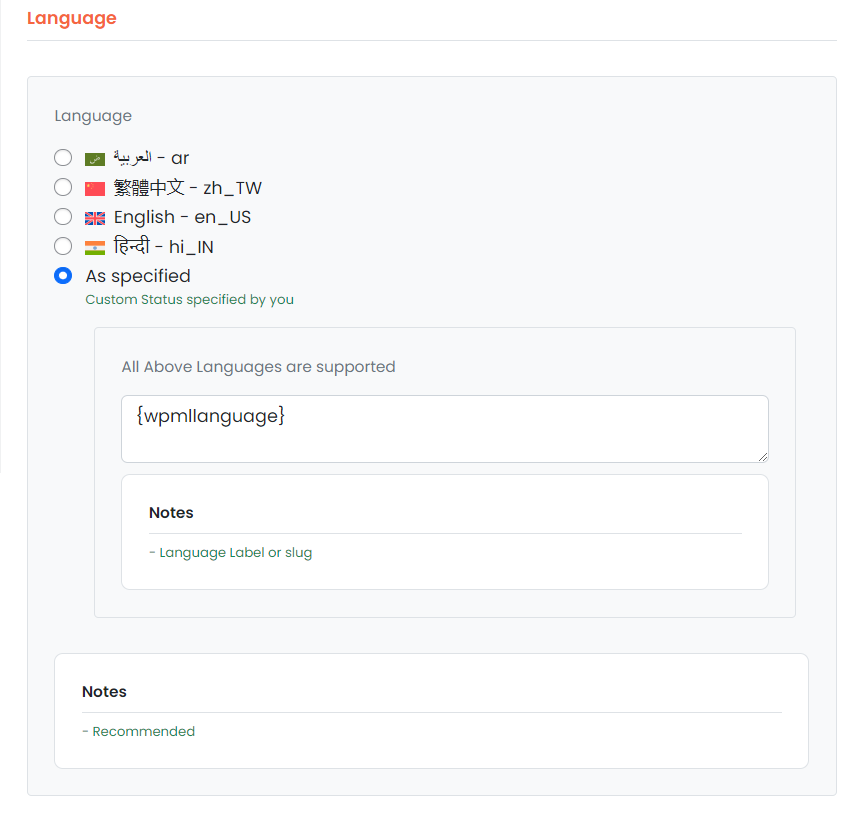
( 1 ) Language : Import language,
- Example: ‘en’ for English, ‘ar’ for Arabic, ‘fr’ for French, and so on.
( 2 ) Translations : You can map two options to language translations. default Exported Data,
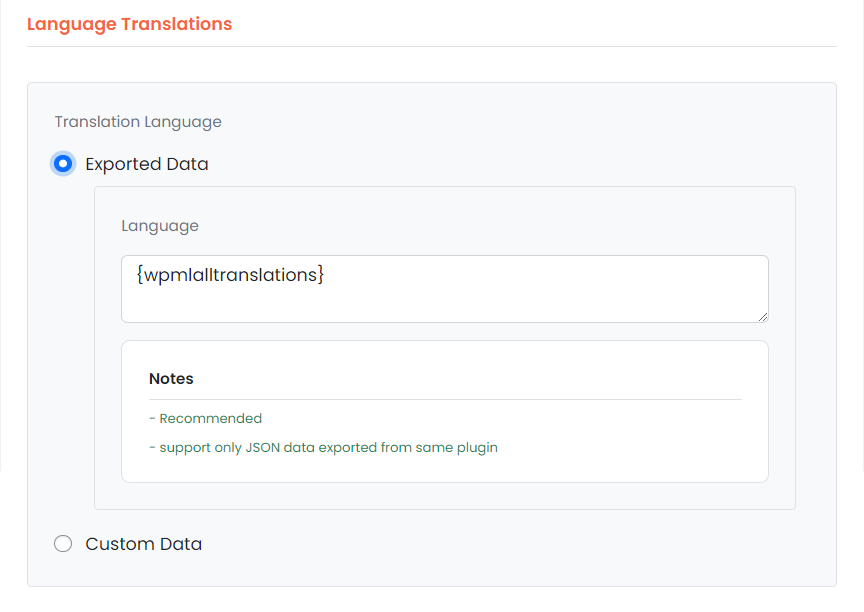
- Exported Data : Exported the same plugin field.
- Custom Data : It is manually to map,
- Language : Import language.
- Example: ‘en’ for English, ‘ar’ for Arabic, ‘fr’ for French, and so on.
- Translations : Translation language data,
- Example: When importing a post, remember to map the Title, Content, or Slug.
- Language : Import language.
After this step, you can continue with the regular import process.